I wanted to share a project that has been occupying many of my evenings and weekends over the last few months: DBV Typst Editor.
To be completely honest, this project started for a very simple reason:
I fell in love with Typst.
As a university professor, technical writer, and long-time LaTeX user, I was constantly looking for a better writing experience. When I discovered Typst, I immediately felt that it was something special. It combined many of the things I always wished LaTeX had: simplicity, speed, consistency, and a much more modern approach to document creation.
The more I used it, the more I wanted a desktop experience specifically designed around the Typst ecosystem.
That is why I started building DBV Typst Editor.
My goal is not to compete with Typst itself. Quite the opposite.
Typst provides the language, compiler, packages, templates, and ecosystem.
I want DBV Typst Editor to be a friendly desktop environment that helps more people discover and use everything that the Typst community has already created.
Some of the current features include:
Native desktop application
100% offline workflow
Live document preview
Project explorer
Typst Universe integration
Template browser
Package browser
One-click template installation
PDF export
Local font management
Academic writing workflows
A lot of the inspiration comes from asking a simple question:
What would happen if Typst had a desktop environment designed not only for developers, but also for researchers, students, teachers, authors, and technical writers?
The project is still under active development, and there is a lot of work ahead. One area I am especially interested in exploring is helping LaTeX and Overleaf users migrate more easily into the Typst ecosystem.
I would love to hear your thoughts:
What features would you most like to see in a desktop Typst editor?
Which parts of your workflow still feel difficult today?
If you are coming from LaTeX, what would make the transition easier?
Thank you to the Typst team and the entire community for building such an amazing ecosystem. This project simply would not exist without it.
Looking forward to your feedback!
David Bueno Vallejo
Associate Professor
Universidad de Málaga
I have a small suggestion about the website: The footer links to Changelog, and the changelog is only available in Spanish. Perhaps it’s better to warn that on the English website. Say, Changelog (Spanish).
Hello David. It would be nice to have the editor handle easy inclusion and organized store of images and other assets. E.g. I paste an image, and the editor writes the code for including it, and stores the image in some folder. This is done with some vscode plugins but options could be added to have it stored in a folder for each typ file in which images are included, or their containing folder, to have them included directly as figures, and so on.
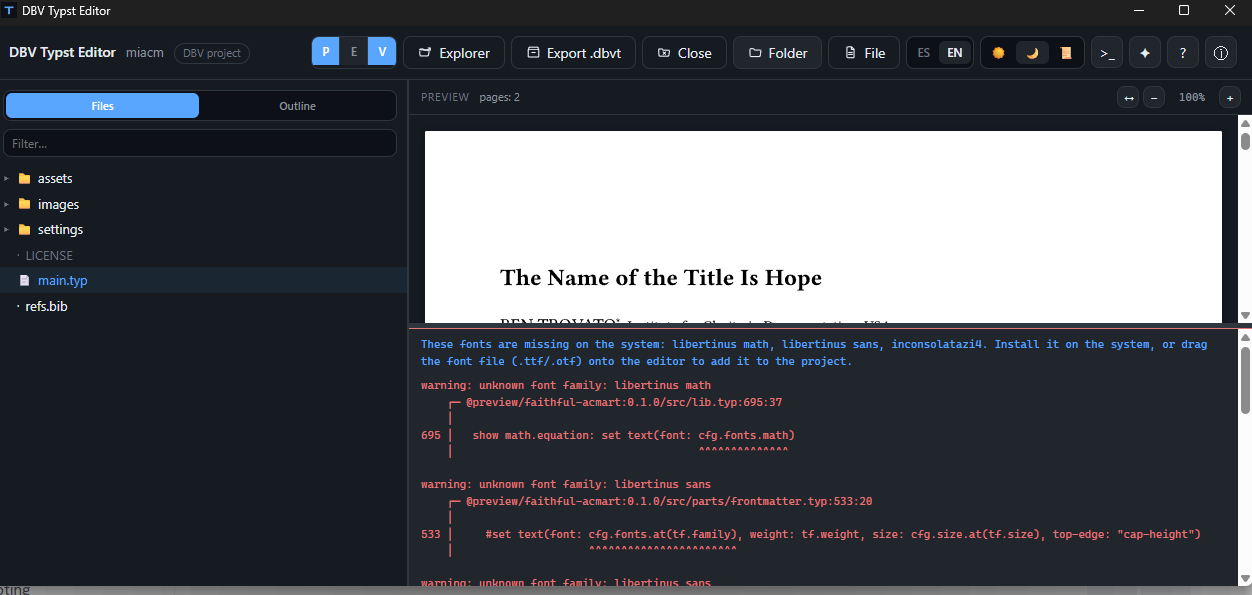
Thank you for your comments. It already works with images and fonts. An example. If I open the ACM template it says (in blue: that some font are missed, and after that the compiler error that has been analysed to show this blue message)
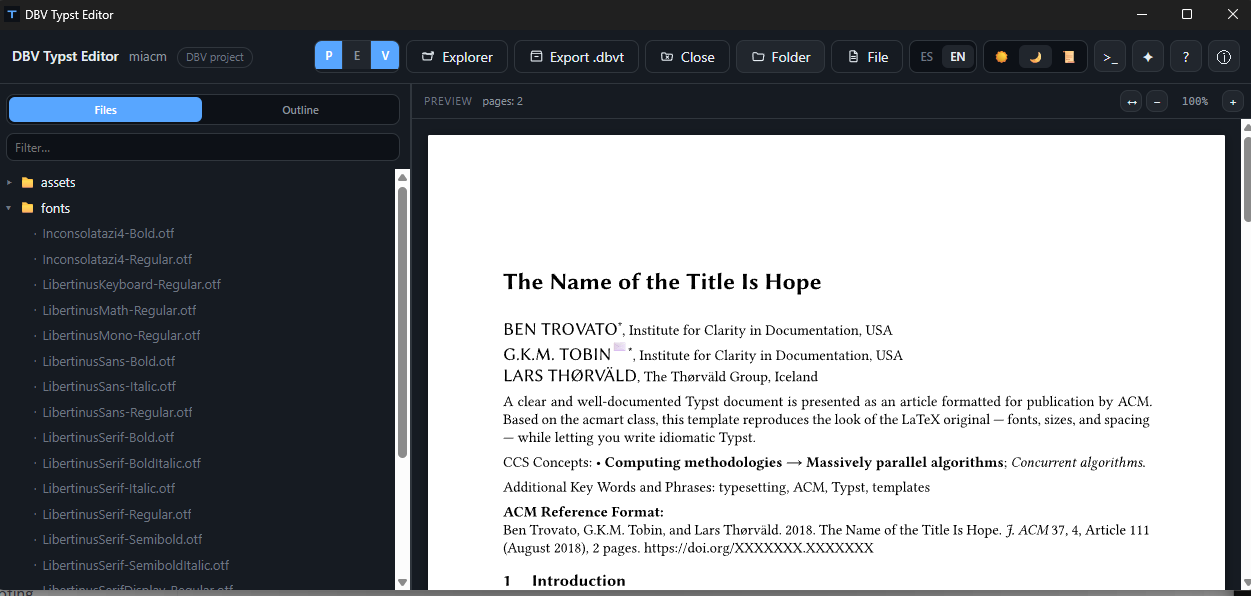
Then if you look for the fonts you don’t need to install in the system, if you drag on the editor, it will add it in the folder fonts and the error will dissapear. as you can check in the next image.
for the images is the same you can drag and drop an image on the editor tab, and it is copied in the folder image and also when you try to insert an image with the toolbar, you get the list of availables images (the same word for a cite, you get the list of available cites). Some improvements of that ar coming with the 0.4.0 version
Quick update since the 0.4.0 post above. Two more releases went out, 0.5.0 and 0.6.0.
0.5.0 added the official Typst language server (tinymist) bundled in the app, so autocomplete and diagnostics work as you type, plus one click formatting. The template gallery got redesigned with full previews, including Typst Universe templates before downloading. There’s also a small CeTZ diagram helper and a Python runner for figures and data.
0.6.0 replaces that CeTZ helper with a visual diagram editor, you draw boxes and arrows and it generates the CeTZ code, and you can reopen a diagram to keep editing it. Git support is in now too, status, commit, push, pull, clone by URL. The image paste from clipboard you asked about is also there now, same as drag and drop but straight from the clipboard. The Typst Universe browser searches the full catalog now, not just a curated list.
Both are on GitHub Releases for Windows, macOS and Linux. 0.6.0 is in review on the Microsoft Store now.
Another update, this time covering 0.7.0, 0.8.0 and 0.9.0.
0.7.0 added a visual math equation editor. You type the Typst code and see the real compiled result right below, and there is a “Paste LaTeX” option that goes through the MiTeX package. The Tools menu also got new assistants for sequence diagrams (Chronos), Gantt charts (Gantty), Kanban boards (Kantan) and DOT/Graphviz graphs (Diagraph), plus a flowchart template with decisions. Each one has a small help button that links to the original package docs.
0.8.0 was about big documents. I tried it on a 220 page book and memory use was getting out of hand, so pages far from the viewport are now released and the preview waits longer before recompiling when the document is heavy. A loose .typ file in a huge folder like Downloads now opens in seconds instead of almost a minute. You can also pick the main document: right click a .typ file and choose “Set as main document”, and a small “main” label shows in the file tree. Tinymist now starts on demand, and you can turn it on or off from its badge. On macOS and Linux there is a Homebrew tap now, with a “typs” command to open a file or folder from the terminal.
0.9.0 is the biggest change. The preview now compiles with Typst inside the app instead of calling a separate program. On that same 224 page book, an edit takes about half a second instead of about 4.6 seconds. If the fast engine fails for any reason, the app falls back to the old one by itself. It also gives exact sync in both directions. Double click a word in the preview and the editor selects that word, or right click and choose “Go to code here”. From the editor, Ctrl+Alt+P marks the word in the preview. On my test book a click lands on the right word about 84 percent of the time, so it is not perfect yet. Errors and warnings are now underlined in the editor, with a counter and a list to jump to each one. The editor also opens code and text files such as .cpp, .java, .py, .json and .csv with syntax highlighting, and if your document embeds one with read(), the preview follows what you type before you save.
Still missing: PDF and PNG export and package downloads still use the Typst CLI, and the macOS build is not signed or notarized yet.
Thanks to Hilbert Editor, another Typst editor. Seeing how it maps a click in the preview back to the source inspired parts of the exact sync work. The implementation here is my own, and Hilbert is MIT licensed.
The 0.9 edition works properly at last. Earlier editions complained about a compilation error so I stayed my hand, waiting for an update. The current version opens the same 78-page document with grace and aplomb.
Congratulations and well done. And thanks for sharing.
Dear @Johannes_Rexx I really appreciate your kind words and patience with my editor.
I am distributing it in Microsoft Store for Windows, and I hope to do it soon in the official Apple Store for MacOS and in Flathub for Linux so it won’t be needed for users to recompile and that they can find it in a safe origin.
By the way, I noticed in another thread that you still maintain a good amount of documents in Markdown. As you have I good eye for testing, I invite you to test my DBV Markdown Reader, where you can edit md, and in the last version I added the possibility to export to Typst generating in an easy way a Typst document that can be improved in any Typst editor.
I’d love to receive new feedback. I always try to implement any suggestion of users so that they can feel that this is the app they like to use
You clever fellow! The DBV Markdown Reader does indeed export from Markdown to Typst code.
Now comes the actual work. As you know, there is no such thing as incorrect Markdown. I know this because I opened a fairly large Markdown file into DBV Markdown Reader and it looked great. But then of course I had to export it to Typst format, which it did quickly enough.
Now comes the actual work because that Markdown files contains characters that Markdown viewers just ignore or have no problems with. But from Typst’s perspective it’s a syntax error. Thus one has to look at both Markdown and Typst files and try to figure out what the problem is.
On the other hand maybe it’s not always a user problem consider this Typst translation by DBV Markdown Reader of a Markdown quote into Typst:
#quote(block: true)[
Using the “zeitgeist” python module from /usr/lib/python3/dist-packages/zeitgeist \
Traceback (most recent call last): \
File “/usr/bin/gnome-activity-journal”, line 119, in  \
from src import config \
File “/usr/share/gnome-activity-journal/src/config.py”, line 30, in  \
from xdg import BaseDirectory \
\< ImportError: cannot import name ‘BaseDirectory’ from ‘xdg’ (/home/johnb/.local/lib/python3.10/site-packages/xdg/*init*.py)

]
This generates an error, “unclosed delimiter.” The contents of the quote are confusing Typst. The fix is to protect the contents with a txt fence:
#quote(block: true)[
```txt
Using the “zeitgeist” python module from /usr/lib/python3/dist-packages/zeitgeist \
Traceback (most recent call last): \
File “/usr/bin/gnome-activity-journal”, line 119, in  \
from src import config \
File “/usr/share/gnome-activity-journal/src/config.py”, line 30, in  \
from xdg import BaseDirectory \
\< ImportError: cannot import name ‘BaseDirectory’ from ‘xdg’ (/home/johnb/.local/lib/python3.10/site-packages/xdg/*init*.py)
```
]
If you like, we continue this discussion at your GitHub repository, even though I suspect this material may be of general interest to people moving their Markdown documents over to Typst.
@Johannes_Rexx thank you again for your revision, I have been working today in the improvement of the conversion from md to typst in DBV Markdown Reader. Rewriting completely the conversion algorithm and adding support to the possible errors you explained in your found. I also thanks you in the readme for your contribution. It is avaliable in the current version 0.17.0
If you or anyone of Typst community find any new problem or possible improvements in both apps I will try to include in the next versions.
Time for another update. Two more versions are out since my last post, 0.10.0 and 0.11.0.
0.10.0 came from a list of suggestions a friend sent me after trying 0.9.0. I went through it point by point and kept the ones that made sense for everyone. There is now optional auto-save, off by default. It saves when you stop typing for a couple of seconds or when you switch to another window, and it never overwrites a file that another program changed. The “unsaved” text in the document bar is now just a small dot next to the file name. .bib files finally get syntax highlighting, so entry types, keys and fields are colored and not plain grey text. Hidden files like .git no longer clutter the file panel, line numbers can be turned off, and the preview refresh button is always visible. My friend said it was “hidden” before, and he was right. All of these are in a new Preferences menu in the header. I also fixed two nasty bugs. If a .bib file was open, the Format button could apply its changes to the wrong file. And closing the window with unsaved changes didn’t actually close it.
0.11.0 grew out of using 0.10.0 every day on a real book with many chapters. That kind of work showed what was still missing, and most of it was about files. The Files panel is now a proper file explorer. You can create files and folders, rename with F2, duplicate, select several items and drag them into another folder, and delete to the recycle bin. You can also drop files from your system file manager onto a folder in the tree.
The part I’m happiest with: when you move or rename a file, every #include, #import, image(), bibliography(), read() and similar path that points to it is updated across the whole project. It uses Typst’s own parser, so it never does a blind text search and replace. A small notice tells you how many references changed, and you can look at the list or undo the whole move. If the document you are editing is affected, the change goes into the editor as a normal edit, and one Ctrl+Z undoes it.
There is also a “New chapter…” command. You type a title, and it creates the file with its heading in the same folder as your other chapters. Then it adds the #include to your main document right after the last one.
Links now work in the preview. Clicking a web link opens it in your browser. Clicking an outline entry, an @ref, a citation or a footnote takes you to that spot in the preview. Double-click still jumps to the source code as before.
Finally, there is a local version history. Before a file is overwritten, the app keeps a copy of the previous version outside your project, so it doesn’t clutter your folder or your Git repository. You can compare any version with the current text and restore it. Everything stays on your computer.
0.11.0 also fixes something that made auto-save almost unusable on Windows. A dialog saying “The document changed outside the editor” kept popping up for no reason. The antivirus or the search indexer touching the file was enough to trigger it. The app now compares the file’s content and no longer trusts the timestamp, so the dialog only shows up when something really changed.
As before, Windows gets it through the Microsoft Store (0.11.0 is waiting for certification right now), and macOS and Linux builds are on GitHub Releases and the Homebrew tap:
The full changelog in English is here:
Thanks again to everyone who has tried it and sent feedback. Most of these features exist because someone here asked for them. If you work with long, multi-chapter documents, I would especially love to hear how the file explorer and the reference updates behave with your projects.
Two new versions have been released since my last update.
Version 0.14.0 adds full generative‑AI integration: the editor can now help you write Typst content, explain features, and even assist with equations. It can also fix compiler errors, install missing fonts automatically, and access every feature of the application through AI. All previous improvements remain, including templates and better project handling.
If you try it, I’d be happy to hear how the new AI workflow supports your Typst documents. As an example you can find here a video in english that creates a document to test equations posibilities of Typst and in Spanish the second one to show the posibilities of Cetz, change between different templates or downoad missing fonts.